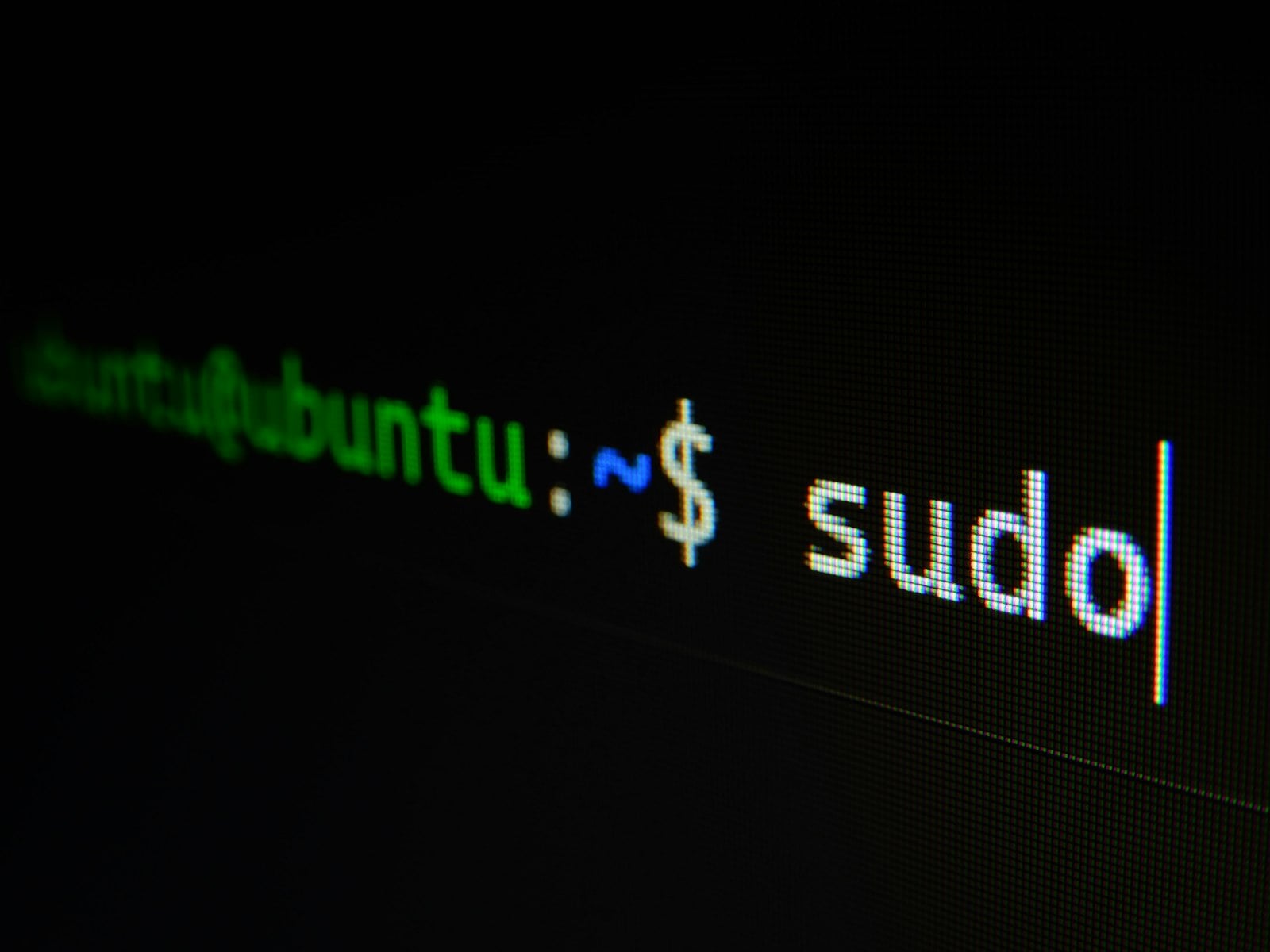
A developer's productivity is rarely determined by how quickly they can type a line of code. More often, it depends on how efficiently they move between tasks, locate information, inspect changes, navigate a codebase, troubleshoot an error, and return to the problem they were solving before an interruption.
Consider a typical development session.
You have a browser open with API documentation, a code editor containing several files, a terminal running a development server, a GitHub pull request awaiting review, and an AI coding assistant helping you investigate a bug. You need to find a function, modify it, run a test, inspect the output, and compare your changes with the previous version.
You could reach for the mouse every time you need to switch windows, search a document, open a file, or move between applications. Alternatively, you could use a small set of keyboard shortcuts to perform many of these actions without repeatedly changing how you interact with the computer.
That difference becomes significant over a full working day.
Keyboard shortcuts are not merely tricks for experienced developers. They are part of a practical computer workflow that students, programmers, IT technicians, cybersecurity analysts, system administrators, and other professionals can learn.
They become even more relevant as AI-powered development tools introduce additional interactions between editors, terminals, repositories, browsers, and automated agents.
The important point, however, is not to memorize hundreds of key combinations. It is to identify the actions you repeat most frequently and learn the shortcuts that make those actions easier.
This guide explores Windows keyboard shortcuts, macOS keyboard shortcuts, VS Code navigation, GitHub productivity, browser research, AI-assisted coding, accessibility, troubleshooting, and practical ways to improve your daily workflow. It also explains why productivity tools alone are not enough: effective technical work still requires the underlying knowledge to understand what your commands, applications, and infrastructure are doing.
By the end, you should have a practical plan for developing faster computer habits while building the technical skills needed for real-world IT work.
1. Why Keyboard Shortcuts Matter More Than You Think
A keyboard shortcut is a combination of keys that triggers an action that might otherwise require navigating a menu, clicking a button, or performing several separate operations.
Common examples include:
Ctrl + Cto copy selected content in most Windows applications.Ctrl + Vto paste copied content.Ctrl + Zto undo an action.Alt + Tabto switch between open applications in Windows.Command + Spaceto open Spotlight search on a Mac, under its default configuration.
Individually, these actions save only a little effort. The real benefit comes from using them consistently during recurring tasks.
Imagine that you are debugging a Python application. You need to inspect a source file, search for a function, open the terminal, run a test, and review the result. If you already know the relevant editor and operating-system shortcuts, you can move through that sequence with fewer interruptions.
The same principle applies outside programming.
A student reviewing certification questions can switch between notes and a browser. A support technician can find a device record, capture an error message, and move between a ticketing system and a remote session. A cybersecurity analyst can navigate between event logs, documentation, and investigation notes.
Keyboard shortcuts are useful wherever the same computer actions happen repeatedly.
However, three distinctions are worth remembering.
First, shortcuts vary between operating systems. Ctrl + C is common on Windows, while Command + C is the corresponding shortcut in most standard Mac applications.
Second, shortcuts can vary between applications. A combination that saves a document in one application might perform a different action in another.
Third, speed is useful only when the action is correct. The fastest way to run the wrong command is not an improvement.
A useful rule is to learn shortcuts for frequent, low-risk actions first. Then build toward more specialized combinations as your work demands them.
For a broader reference covering everyday commands, text navigation, special characters, symbols, screenshots, and Windows-versus-Mac differences, see the Edulace Windows and Mac keyboard shortcuts guide.
2. Understand the Difference Between Windows and Mac Keyboard Shortcuts
One of the first problems people encounter when moving between Windows and macOS is that the keyboard layouts look familiar, but the modifier keys behave differently.
The modifier key is the key you hold while pressing another key to trigger an action.
On a Windows keyboard, Ctrl is the primary modifier for many application shortcuts. On a Mac, that role usually belongs to Command, represented by the ⌘ symbol.
The following table provides a useful starting point.
| Action | Windows | macOS |
|---|---|---|
| Copy | Ctrl + C |
Command + C |
| Paste | Ctrl + V |
Command + V |
| Cut | Ctrl + X |
Command + X |
| Undo | Ctrl + Z |
Command + Z |
| Select all | Ctrl + A |
Command + A |
| Find text | Ctrl + F |
Command + F |
| Save | Ctrl + S |
Command + S |
Ctrl + P |
Command + P |
|
| Switch applications | Alt + Tab |
Command + Tab |
| Close the active window | Alt + F4 |
Command + W |
| Search the computer | Windows + S |
Command + Space |
These combinations work in many common applications, but they are not universal rules for every program or system configuration.
For instance, Command + W usually closes a window on macOS, while Command + Q generally quits the application. Those are different actions.
Windows also distinguishes between closing a window and quitting an application, and application-specific behavior can differ.
The official Microsoft Windows keyboard shortcuts reference and Apple's Mac keyboard shortcuts documentation are the best starting points when you need to verify a shortcut.
How to transfer your habits between operating systems
You do not need to relearn every computer action when changing platforms.
Instead, identify the action first and then learn the corresponding shortcut.
For example:
- When you want to copy, use the primary copy shortcut for that operating system.
- When you want to search, determine whether the search is inside an application or across the whole computer.
- When you want to close something, distinguish between closing a document, closing a window, and quitting an application.
- When you want to move between applications, learn the operating system's application switcher.
This approach is more reliable than memorizing isolated key combinations without understanding what they accomplish.
3. Essential Windows Keyboard Shortcuts Every Developer Should Know
Windows is widely used for application development, IT support, business computing, and technical learning.
You do not need to learn every available Windows shortcut to become efficient. Begin with the combinations that improve navigation, file management, and everyday editing.
Text editing shortcuts
| Shortcut | Action |
|---|---|
Ctrl + C |
Copy selected content |
Ctrl + X |
Cut selected content |
Ctrl + V |
Paste content |
Ctrl + Z |
Undo |
Ctrl + Y |
Redo in many applications |
Ctrl + A |
Select all |
Ctrl + F |
Find text |
Ctrl + H |
Open Find and Replace in many editors |
Ctrl + S |
Save |
Ctrl + P |
Print in many applications |
These combinations are useful when editing source code, writing documentation, preparing reports, or maintaining configuration files.
Consider a situation where you need to replace the same variable name throughout a document. Using Find and Replace can be more efficient than searching manually, although you should review the proposed replacements before applying them to important code.
Window and desktop management
| Shortcut | Action |
|---|---|
Alt + Tab |
Switch between open applications |
Windows + D |
Show or hide the desktop |
Windows + E |
Open File Explorer |
Windows + L |
Lock the computer |
Windows + I |
Open Windows Settings |
Windows + R |
Open the Run dialog |
Windows + Tab |
Open Task View |
Alt + F4 |
Close the active window or application |
Windows + Left Arrow |
Snap the current window to the left |
Windows + Right Arrow |
Snap the current window to the right |
Windows + V |
Open clipboard history, when supported and enabled |
These shortcuts are especially valuable when working with several applications at once.
Suppose you are developing a web application locally. You might need a browser, an editor, a database manager, and a terminal open at the same time.
You can position the windows using Snap and move between applications with Alt + Tab.
This creates a more predictable workspace, particularly when you regularly switch between coding, testing, and reading documentation.
File Explorer shortcuts
File management is another area where a few shortcuts can remove repetitive navigation.
| Shortcut | Action |
|---|---|
Windows + E |
Open File Explorer |
Ctrl + N |
Open a new window in File Explorer |
Ctrl + Shift + N |
Create a new folder |
F2 |
Rename the selected file or folder |
Alt + Up Arrow |
Navigate to the parent folder |
Alt + Enter |
Open properties for the selected item |
For developers maintaining multiple projects, these shortcuts help with organizing source files, inspecting downloaded resources, and navigating project directories.
Use them carefully when renaming or moving important files. A shortcut makes an action easier to perform, but it does not remove the need to verify which item is selected.
Clipboard history: useful, but handle it carefully
The Windows clipboard history feature can be convenient when you need to paste recently copied content.
For instance, a developer may copy a file path, then an error message, and then a configuration value. Clipboard history can help retrieve previously copied material without returning to each original location.
However, clipboard history can also retain sensitive information, depending on system configuration and usage.
Avoid copying passwords, API tokens, private keys, or other secrets into environments where their contents might be retained or exposed unnecessarily.
Convenience should not override data-handling requirements.
For the complete, version-appropriate list, consult Microsoft's Windows keyboard shortcuts documentation.
4. Essential Mac Keyboard Shortcuts for Developers and Students
macOS provides its own collection of shortcuts for navigating applications, managing windows, editing text, and searching the system.
The most important difference for many Windows users is the role of the Command key.
Everyday Mac shortcuts
| Shortcut | Action |
|---|---|
Command + C |
Copy |
Command + V |
Paste |
Command + X |
Cut |
Command + Z |
Undo |
Command + Shift + Z |
Redo in many applications |
Command + A |
Select all |
Command + F |
Find |
Command + S |
Save |
Command + P |
|
Command + Tab |
Switch between applications |
Command + Space |
Open Spotlight, under its default shortcut configuration |
Command + W |
Close the current window |
Command + Q |
Quit the current application |
Command + M |
Minimize the current window |
Shift + Command + N |
Create a new folder in Finder |
The distinction between Command + W and Command + Q is particularly useful.
Closing a window does not necessarily terminate the application. Quitting an application is a different operation and may affect all open windows belonging to that program.
Use Spotlight to locate information
Spotlight is useful when you need to find an application, document, or other indexed item on a Mac.
Instead of opening Finder and navigating through several folders, you can invoke Spotlight and search for the item directly.
This is useful when:
- You regularly switch between development applications.
- A file is buried several folders deep.
- You want to launch a utility quickly.
- You need to find a document without remembering its exact location.
Spotlight's results depend on indexing, permissions, and system configuration. If an item does not appear, you may need to inspect the relevant search settings or navigate to the file manually.
Moving through text more efficiently
Text editing is not simply about inserting characters. It also involves selecting the right sections, moving between words, and positioning the cursor accurately.
Common Mac combinations include:
| Shortcut | Common action |
|---|---|
Option + Left Arrow |
Move backward by a word in many text fields |
Option + Right Arrow |
Move forward by a word in many text fields |
Command + Left Arrow |
Move to the beginning of a line or logical line, depending on the application |
Command + Right Arrow |
Move to the end of a line or logical line, depending on the application |
Command + Up Arrow |
Move toward the beginning of a document in many applications |
Command + Down Arrow |
Move toward the end of a document in many applications |
Text navigation can make editing long documents and source files much more manageable.
The exact behavior varies by application, so verify the shortcuts in the editor you use.
For the full platform reference, consult Apple's official Mac keyboard shortcuts guide.
5. How to Switch Between Windows and Mac Without Losing Productivity
Knowing shortcuts on each operating system is useful. Knowing how to transfer your workflow between them is even more useful when you work across different devices.
Many developers use a Windows workstation at the office, a MacBook while traveling, and a remote Linux environment for development or deployment.
The key is to separate the action you want to perform from the specific key combination used to perform it.
Build a platform-independent workflow
Start by identifying recurring actions:
- Open the application you need.
- Switch between open applications.
- Find a file or search within a document.
- Copy or move selected content.
- Open the terminal.
- Save your work.
- Review changes before committing them.
Then learn how those actions work on the relevant operating system.
For example, a developer can use one pattern to search for a file in an editor, even though the shortcut differs between the Windows and Mac versions.
This becomes particularly important when using applications that support multiple operating systems.
Learn the editor's own shortcuts
Some shortcuts belong to the operating system. Others belong to the application.
For example, application switching is primarily an operating-system function. Searching for a symbol in a source code project is usually an editor function.
Confusing these categories can make shortcut learning unnecessarily difficult.
The best approach is to learn the operating system's navigation tools first, then learn the shortcuts for the applications you use most.
If you frequently change between Windows and macOS, the Edulace Windows and Mac keyboard shortcuts reference is a useful companion for reviewing common actions, modifier keys, text selection, special characters, and symbols.
6. VS Code Keyboard Shortcuts That Make Development More Efficient
Visual Studio Code is widely used for web development, scripting, and many other programming tasks.
Its keyboard shortcuts are valuable because coding involves a great deal of navigation between files, functions, search results, terminals, and diagnostics.
The shortcuts below use common defaults. Platform-specific mappings and customized keybindings can differ.
Open files quickly
On Windows and Linux, Ctrl + P opens the Quick Open interface in VS Code. On macOS, the equivalent is generally Command + P.
This allows you to locate a project file by entering part of its name rather than browsing through the entire directory tree.
Imagine a Laravel project containing controllers, models, migrations, middleware, and views.
Typing part of a controller's name into Quick Open can be much faster than navigating through multiple folders.
This becomes particularly useful when working in unfamiliar repositories or codebases with many files.
Search across a project
Use the editor's workspace search to find text across files.
The common default is:
- Windows/Linux:
Ctrl + Shift + F - macOS:
Command + Shift + F
This is useful when you need to locate a function call, configuration key, route definition, environment variable name, or error string.
However, search results must be interpreted carefully. A text match is not necessarily the place where behavior originates. A function name, for example, might appear in a test, an interface, a comment, and an implementation.
Read the surrounding code before deciding which result to modify.
Open the Command Palette
A useful VS Code shortcut is the Command Palette:
- Windows/Linux:
Ctrl + Shift + P - macOS:
Command + Shift + P
The Command Palette provides access to many commands without requiring you to remember every menu location.
Instead of memorizing a shortcut for every editor operation, you can search for the command by name and learn its shortcut when necessary.
This is especially useful when working with extensions or features you use occasionally.
Find and replace
Find and Replace is valuable when updating repeated text, variable names, or known strings.
Before applying a replacement across multiple files, consider the scope of the change.
A global replacement can affect test fixtures, comments, documentation, or unrelated identifiers that happen to contain the same text.
Review the match count and inspect representative results before applying a broad change.
Use the integrated terminal
VS Code's integrated terminal lets you run shell commands without leaving the editor.
You might use it to:
- Start a local development server.
- Run unit tests.
- Execute a migration.
- Inspect Git status.
- Run a formatter or linter.
- Install project dependencies.
The exact terminal shortcut depends on your operating system and keybinding configuration. You can find or customize it through the editor's Command Palette and Keyboard Shortcuts editor.
Learn keyboard shortcuts from the official documentation
The Visual Studio Code keyboard shortcuts documentation explains how shortcuts work and how to customize them.
It also provides a way to inspect existing keybindings, search for commands, and adjust combinations that conflict with your preferred workflow.
Do not try to memorize the entire list.
Start with opening files, project search, the Command Palette, saving, and terminal access. Add more shortcuts when you repeatedly perform an action and notice that navigating through menus interrupts your work.
7. Git and GitHub: Keyboard Efficiency Beyond the Code Editor
A developer's work does not stop when a function compiles.
Software development also involves reviewing diffs, inspecting pull requests, examining issues, reading documentation, checking continuous integration results, and collaborating with other developers.
Keyboard shortcuts and navigation tools can make those tasks less cumbersome.
Navigate GitHub more efficiently
GitHub provides keyboard shortcuts for many interface actions.
For example, pressing ? on many GitHub pages opens a dialog showing the shortcuts available in that context.
The available shortcuts vary depending on the page and whether focus is currently inside an input or another interactive element.
The GitHub keyboard shortcuts documentation explains the available controls and how they can be used across the GitHub interface.
This is useful when reviewing code or working through an issue without repeatedly navigating menus.
Understand the difference between shortcuts and Git commands
Keyboard shortcuts help you navigate the interface. Git commands control version-management operations.
These are complementary, not interchangeable.
For example, switching to a pull request in the browser does not stage your local file changes. A keyboard shortcut that opens the terminal does not commit your code.
In a common Git workflow, you might run:
git status
git diff
git add path/to/file
git commit -m "Explain the change"
These commands respectively show the working tree state, display changes, stage a selected path, and create a commit.
The examples assume you are in a Git repository and understand which changes you intend to include.
Before committing, review the diff and confirm that you are not accidentally including secrets, unrelated edits, generated files, or unfinished work.
Keyboard efficiency is most valuable when combined with good version-control habits.
Why reviewing changes still matters
Suppose an AI coding assistant modifies three files to fix a bug.
You could accept the suggestion, save everything, and move on. But you would not necessarily know whether the assistant changed unrelated behavior, introduced an unnecessary dependency, or modified a security-sensitive section.
A more reliable workflow is to inspect the diff, understand the purpose of each change, run appropriate tests, and verify the outcome.
The same discipline applies whether the code was written by a human, generated by an AI system, or adapted from an external example.
Shortcuts reduce navigation friction. They do not remove the need for technical judgment.
8. Keyboard Shortcuts in AI-Assisted Development Workflows
AI coding tools can generate functions, explain unfamiliar code, suggest fixes, and help developers investigate bugs. As these tools become part of everyday programming, the number of interactions between applications can increase.
You might ask an assistant to explain a stack trace, open the relevant file, change a function, inspect a terminal result, and compare the new code with the previous implementation.
Without an organized workflow, it is easy to lose track of what changed and why.
Keyboard shortcuts can help make these interactions more manageable.
A practical AI-assisted development loop
Consider a Python application that raises an exception during a test.
A disciplined workflow might look like this:
- Use the editor's search function to locate the relevant function.
- Read the surrounding implementation and identify the failing behavior.
- Ask an AI assistant to explain the error or suggest a possible cause.
- Inspect the proposed change before applying it.
- Run the relevant test in the terminal.
- Review the test output and application logs.
- Inspect the diff to confirm the change is limited to the intended behavior.
The shortcuts make each transition easier, but the technical reasoning determines whether the workflow succeeds.
Do not automate away verification
AI systems can make plausible mistakes. They may misunderstand the architecture, assume a dependency exists when it does not, or propose a command that is inappropriate for the current environment.
Before running an AI-generated command, ask:
- What does it do?
- Which files or systems can it modify?
- Does it require elevated privileges?
- Could it expose credentials or other sensitive data?
- How will I confirm that the command succeeded?
- Is there a safer way to perform the task?
These questions matter especially when automated tools can access terminals, repositories, deployment environments, or external services.
Keyboard speed is not the same as engineering productivity
A developer who uses shortcuts efficiently but accepts every AI-generated change without review may introduce more problems than they solve.
Another developer might take slightly longer to inspect the result, test the behavior, and understand the change. That additional work can prevent regressions and reduce future debugging effort.
The goal is not to maximize the number of actions performed per minute.
The goal is to complete the correct task with an appropriate level of accuracy, safety, and maintainability.
AI assistance and keyboard shortcuts work best when they support that larger objective.
9. Browser Keyboard Shortcuts for Research, Documentation, and Debugging
Developers spend a substantial amount of time in browsers.
They inspect API documentation, research error messages, compare library versions, review cloud dashboards, read GitHub issues, and verify behavior against official sources.
A few browser shortcuts can reduce the time spent navigating among those resources.
| Action | Windows | macOS |
|---|---|---|
| Open a new tab | Ctrl + T |
Command + T |
| Close the current tab | Ctrl + W |
Command + W |
| Reopen a recently closed tab | Ctrl + Shift + T |
Command + Shift + T |
| Find text on a page | Ctrl + F |
Command + F |
| Refresh the page | Ctrl + R |
Command + R |
| Zoom in | Ctrl + + |
Command + + |
| Zoom out | Ctrl + - |
Command + - |
| Reset zoom | Ctrl + 0 |
Command + 0 |
These are common shortcuts in major browsers, although behavior can vary by browser, operating-system version, and keyboard configuration.
Search within long documentation pages
Imagine that you are reading a long API reference and need to locate a method called createSession.
Instead of scrolling through every section, use the browser's Find function to search for the method name.
This is useful for quickly locating:
- Parameter descriptions.
- Error codes.
- Configuration settings.
- Version notes.
- Examples of a particular API call.
However, browser Find searches the content available on the page. It does not establish that the first match is the correct implementation or the most recent guidance.
Check the surrounding context and confirm the documentation version where relevant.
Keep research organized
A practical browser workflow might separate tasks into a few logical groups:
- Documentation and official technical references.
- The current codebase and development environment.
- Issues, pull requests, and project-management tools.
- Learning notes and certification study resources.
The exact number of windows or tabs is a personal choice. Too many tabs can make navigation harder, so close irrelevant pages and keep only the resources that support the current task.
When learning a new technology, prioritize official documentation over unverified snippets whenever possible.
A community answer might solve an unusual problem, but the current documentation is often the better starting point for understanding supported behavior.
10. Special Characters, Symbols, and Code Formatting
Keyboard efficiency is not limited to application navigation.
Developers frequently type symbols, punctuation, code operators, mathematical notation, accented names, and special characters.
Examples include:
→for an arrow in documentation.±for plus-or-minus notation.≠for inequality.©for a copyright symbol.…for an ellipsis.€or£for currency symbols.
The available methods depend on the operating system, keyboard layout, and application.
macOS supports the Character Viewer for browsing and inserting symbols. Windows provides tools such as Character Map and the emoji and symbol panel.
For code, use the syntax that belongs to the language rather than substituting a visually similar character.
For instance, a programming language may expect a particular ASCII operator, while a typographic symbol that looks similar is a different character.
This distinction can matter in source code, configuration files, scripts, and command-line operations.
Understand your keyboard layout
Special-character combinations are not identical across all layouts.
A shortcut that inserts a particular character on a U.S. keyboard may produce a different character on another layout.
This matters for developers working with international keyboards, multilingual content, or remote environments where local and remote input settings differ.
For platform-specific details, use the Edulace Windows and Mac keyboard shortcuts guide, which covers common text-editing combinations, special characters, emoji, symbols, and related tasks.
For authoritative behavior, cross-check the Microsoft Windows shortcut documentation or Apple's keyboard shortcuts reference.
11. Accessibility: Why Keyboard Navigation Matters
Keyboard navigation is not just a convenience for experienced developers.
Some users find keyboard interaction more practical than a mouse or trackpad. Others use keyboards because of a temporary limitation, a particular accessibility need, a preferred interaction style, or the requirements of their working environment.
Applications that support predictable keyboard navigation can make common tasks easier to complete without relying exclusively on a pointing device.
Understand focus
In a graphical application, keyboard focus indicates which control or area will receive keyboard input.
For example, pressing Ctrl + F or Command + F commonly opens a search field. Once that field receives focus, the next characters you type are interpreted as a search query rather than as input to the previously active document.
When keyboard interactions appear not to work, check where the focus is located.
A shortcut may be valid, but the application may currently be directing keystrokes to a different field or interface element.
Learn the Tab key and Escape key
The Tab key commonly moves focus between interactive controls, although the precise behavior depends on the application.
Escape often closes a dialog, cancels a menu, or exits a transient interface state.
These keys can be especially useful when testing a web application.
For example, if you are developing a login form, you should verify that users can navigate through the fields, reach the submit button, understand which element is focused, and recover from errors without relying on the mouse.
Do not assume every shortcut is accessible or appropriate
Keyboard navigation needs to be designed and tested. A page that supports a few shortcuts may still have focus problems, inaccessible dialogs, or controls that cannot be operated from the keyboard.
Developers should ensure that their applications provide appropriate focus behavior, visible focus indicators, and sensible keyboard interaction.
Shortcuts should complement accessible interface design rather than replace it.
The GitHub keyboard shortcuts documentation illustrates how a major developer platform documents keyboard navigation and provides settings relevant to character-key shortcuts.
12. Ergonomics: Productivity Should Not Come at the Expense of Comfort
Keyboard shortcuts can reduce unnecessary navigation, but they do not eliminate the physical demands of computer work.
Long sessions of repetitive typing can still place stress on the hands, wrists, shoulders, and other parts of the body, particularly when the workstation is poorly arranged.
A good workflow should consider both efficiency and comfort.
Keep the keyboard and monitor appropriately positioned
The U.S. Occupational Safety and Health Administration provides guidance on computer workstation design and working posture.
Its computer workstation positioning guidance emphasizes neutral positioning, including keeping the hands, wrists, and forearms reasonably aligned and avoiding unnecessary reaching.
Practical workstation considerations include:
- Positioning the keyboard so the wrists are not forced into awkward angles.
- Keeping the mouse or pointing device within comfortable reach.
- Adjusting the monitor to reduce unnecessary neck movement.
- Taking breaks from sustained computer tasks.
- Varying tasks and interaction methods when practical.
Keyboard shortcuts should make tasks easier, not encourage uninterrupted repetitive activity.
Use shortcuts selectively
Not every mouse action needs to be replaced.
Some activities are genuinely easier with a pointing device, particularly when drawing, dragging objects, manipulating visual interfaces, or working with applications designed around direct manipulation.
The objective is to reduce unnecessary friction rather than turn keyboard use into a competition.
Use the interaction method that suits the task, the application, and your comfort.
13. Keyboard Shortcuts and Technical Troubleshooting: Know When to Look Deeper
An efficient computer workflow helps you reach the right tool quickly. It does not replace the underlying technical skills needed to diagnose problems.
Consider a developer working on a web application. They know the shortcuts for switching windows, opening the terminal, and searching documentation.
Yet their application still cannot connect to the network.
The problem may involve DNS, routing, a firewall, a disabled network interface, a server process, or a faulty physical connection.
Knowing how to navigate the tools is helpful, but the developer must also understand what to investigate.
Separate navigation from diagnosis
Keyboard shortcuts help you get to the place where you need to investigate.
For example:
- A shortcut opens the terminal.
- A command displays network-interface information.
- Another command tests connectivity.
- A browser shortcut opens the relevant technical documentation.
- A code editor shortcut locates the function responsible for making a request.
Each action supports a different part of the process.
The key is to know which evidence each step provides and what it does not establish.
Physical cabling is a good example
Suppose a computer loses its Ethernet connection. You use shortcuts to open the system settings, inspect network status, and reach the relevant logs.
You may quickly discover that the network interface no longer detects a physical link.
At that point, repeatedly searching application code is unlikely to solve the immediate problem.
You need to inspect the physical connection, test the cable where appropriate, and check the connected ports.
Understanding networking hardware is therefore a useful complement to computer productivity skills.
For a practical explanation of Ethernet connectors, T568A and T568B wiring, cable crimping, wire-map testing, and common physical faults, read the Edulace networking cable termination and crimping guide.
The broader lesson is that shortcuts help you move through a troubleshooting process efficiently, while technical knowledge helps you choose the correct process in the first place.
14. The Connection Between Productivity Skills and IT Certification Preparation
Computer shortcuts are useful across many technical roles, but they should be viewed as supporting skills rather than substitutes for technical knowledge.
Certification exams often assess whether you can identify the correct next step in a scenario, recognize a technical problem, interpret evidence, or select the appropriate tool.
Your ability to navigate an operating system efficiently can support practical study and work. However, exam readiness also requires understanding the relevant domains and objectives.
CompTIA A+: Hardware and IT support
CompTIA A+ covers foundational IT support knowledge, including hardware, software, operating systems, and troubleshooting.
Keyboard navigation can help when moving between support applications, documentation, operating-system tools, and ticketing systems.
More importantly, understanding the computer itself helps you interpret what happens when an application or device fails.
CompTIA Network+: Networking fundamentals
Network+ focuses on networking concepts, infrastructure, implementation, and troubleshooting.
The ability to navigate system tools is useful when checking network status or researching a configuration problem, but understanding addressing, routing, cabling, wireless connectivity, and network services remains essential.
For example, a computer's failure to access a server might be related to DNS resolution, routing, a firewall, a physical link, or the server itself.
You need the networking knowledge to determine which possibility fits the available evidence.
CompTIA Security+: Security concepts and controls
Security+ covers security concepts, risk, threats, controls, and related aspects of protecting systems.
Productivity shortcuts can help analysts navigate logs, review configuration files, and move between tools, but they do not replace knowledge of access controls, secure configuration, identity, monitoring, and risk management.
In security-sensitive environments, speed must be balanced against verification and careful handling of information.
Practice with a structured learning path
If you are preparing for an IT certification, begin with the applicable exam objectives and build your study routine around them.
Combine reading, practical exercises, and practice questions.
After answering a question incorrectly, review the explanation and identify the specific concept you misunderstood. Then revisit that concept in the relevant documentation or learning material.
You can explore related subjects through the Edulace IT and Tech Certification Exam Prep hub.
For learners focusing on the CompTIA pathways, the CompTIA A+, Network+, and Security+ practice exams provide a more focused entry point for certification-oriented practice.
This approach combines practical computer habits with the technical reasoning required for real IT work.
15. A Practical Four-Week Plan for Learning Keyboard Shortcuts
Trying to memorize every shortcut at once is inefficient.
A better approach is to learn a small group of combinations, use them in real tasks, and add more when you notice repeated actions that could be simplified.
Week 1: Master everyday editing
Start with the shortcuts you use most often.
On Windows, practice:
Ctrl + C— copy.Ctrl + V— paste.Ctrl + X— cut.Ctrl + Z— undo.Ctrl + A— select all.Ctrl + F— find.Ctrl + S— save.
On macOS, learn the corresponding combinations using Command.
Practice these shortcuts when editing notes, documentation, or non-critical sample files.
The goal is to become comfortable with the actions without having to stop and recall the combination each time.
Week 2: Improve navigation
Learn the shortcuts for moving between windows, opening applications, and locating files.
Windows users can practice Alt + Tab, Windows + E, and Windows + D.
Mac users can practice Command + Tab, Command + Space, and common Finder shortcuts.
Spend a few minutes using them during normal work rather than testing them only in isolation.
Week 3: Learn application-specific commands
Choose the applications you use most frequently.
For developers, that might include VS Code, a terminal, GitHub, and a browser.
Learn how to open files, search across a project, access the Command Palette, inspect version-control changes, and switch between relevant browser tabs.
Use official documentation when you need to confirm a shortcut or change a keybinding.
Week 4: Build a repeatable workflow
Choose one recurring task and identify the interactions involved.
For example, a debugging workflow might include:
- Switching to the code editor.
- Searching for a function.
- Reviewing the relevant implementation.
- Opening the terminal.
- Running a test.
- Switching to the browser for documentation.
- Returning to the editor to make a verified change.
Identify the shortcuts that make those steps easier.
Then evaluate the workflow as a whole. Are you spending too much time switching context? Are you keeping unnecessary tabs open? Are you repeatedly looking up commands that could be documented in a personal reference?
The aim is not simply to type more quickly. It is to make the work easier to follow, repeat, and verify.
16. How to Decide Which Shortcuts Are Worth Memorizing
You will encounter hundreds of shortcuts across operating systems and applications. Only a subset will be useful in your daily work.
A simple way to prioritize them is to consider three factors:
Frequency: How often do you perform the action?
Friction: Does the existing method interrupt your workflow or require several steps?
Risk: Could an accidental shortcut cause significant consequences?
Actions that are frequent, inconvenient, and low-risk are often good candidates for early learning.
For example, finding text in a document is frequent and generally low-risk. It makes sense to learn that shortcut early.
By contrast, shortcuts that close unsaved work, execute commands, or perform destructive actions deserve more caution. Learn what they do before using them, and understand how the application handles confirmation and recovery.
Keep a personal shortcut reference
You can keep a small note containing the combinations you actually use.
For example:
| Task | Shortcut |
|---|---|
| Copy and paste | Platform-specific copy and paste shortcuts |
| Switch applications | Alt + Tab on Windows; Command + Tab on Mac |
| Find text | Ctrl + F on Windows; Command + F on Mac |
| Open VS Code Quick Open | Ctrl + P on Windows/Linux; Command + P on Mac |
| Open the VS Code Command Palette | Ctrl + Shift + P on Windows/Linux; Command + Shift + P on Mac |
Review the note occasionally and remove combinations you never use.
A personal reference is more useful when it reflects your actual workflow than when it attempts to reproduce every shortcut available in every application.
17. Frequently Asked Questions About Keyboard Shortcuts
What are keyboard shortcuts?
Keyboard shortcuts are combinations of keys that trigger actions in an operating system or application. They help users perform common tasks without navigating menus or relying exclusively on a mouse or trackpad.
What are the most useful keyboard shortcuts for developers?
Start with shortcuts for copying, pasting, undoing, searching, saving, switching applications, opening files, and searching across a codebase. Add editor-specific commands based on the tasks you perform frequently.
What is the difference between Windows and Mac keyboard shortcuts?
Windows commonly uses the Ctrl key for application actions such as copying and saving. macOS commonly uses the Command key for corresponding actions. Other shortcuts also differ, particularly those for application management, system search, and window control.
Do VS Code keyboard shortcuts work the same way on Windows and Mac?
Not always. VS Code provides platform-specific default keybindings, and users can customize them. Consult the official VS Code keybindings documentation to check the correct combination for your platform.
Can keyboard shortcuts improve programming productivity?
They can reduce repetitive navigation and make common actions easier to perform. Their value depends on the task and the user's workflow. They do not automatically improve code quality or eliminate the need for testing and review.
Are keyboard shortcuts important when using AI coding assistants?
They can help developers move efficiently between code, terminal output, documentation, and review tools. However, AI-generated changes and commands still need to be examined and verified before they are relied upon.
How can I learn keyboard shortcuts without memorizing hundreds of them?
Start with a small set of frequently used actions. Practice them during ordinary work, consult the relevant application's documentation, and add new combinations when a task repeatedly interrupts your workflow.
Do keyboard shortcuts make an application more accessible?
Keyboard interaction can improve access for users who prefer or need to operate an interface without a mouse. However, accessibility also depends on focus management, clear focus indicators, sensible navigation, and whether all relevant controls can be reached and operated from the keyboard.
What should I do when a keyboard shortcut does not work?
Check which application has focus, confirm the operating system and keyboard layout, and consult the application's shortcut documentation. The shortcut may differ by platform, may be customized, or may conflict with another command.
How do keyboard shortcuts relate to IT certification preparation?
Shortcuts can make studying and navigating technical tools more efficient, but certification success depends on learning the applicable objectives and developing the technical knowledge needed to answer questions accurately.
For related learning resources, explore the Edulace IT and Tech Certification Exam Prep hub.
18. Official Resources Worth Bookmarking
When learning keyboard shortcuts, official documentation is valuable because shortcut behavior can change with application versions, operating-system updates, and user configurations.
The following references provide a solid starting point:
- Microsoft: Keyboard shortcuts in Windows — common Windows shortcuts for navigation, windows, and everyday actions.
- Apple: Mac keyboard shortcuts — the official macOS reference for modifier keys and application actions.
- Visual Studio Code: Keyboard shortcuts and keybindings — how to inspect and customize editor shortcuts.
- GitHub: Keyboard shortcuts — keyboard interaction for GitHub's interface.
- OSHA: Good working positions — guidance on workstation positioning and neutral posture.
- Microsoft PowerToys Keyboard Manager — information about remapping keys and shortcuts in supported Windows environments.
Keep these references available when you move between devices or begin using a new application.
They are especially useful when you need to verify whether a shortcut is a default behavior, a platform-specific command, or a customizable keybinding.
Conclusion: Better Productivity Comes From Better Habits, Not More Shortcuts
Keyboard shortcuts are a small but practical part of becoming more efficient with technology.
Learning the right combinations helps you navigate Windows and macOS, move between applications, locate code, search documentation, review changes, and complete recurring computer tasks with fewer interruptions.
As AI-assisted development becomes more common, those habits can also make it easier to manage the movement between code editors, terminals, repositories, browser tabs, and automated tools.
But efficient navigation is only one part of effective technical work.
You must still understand the systems you are working with, verify the behavior of commands, review code changes, protect sensitive information, and investigate problems using appropriate evidence.
That is why productivity skills and foundational IT knowledge complement each other.
If you want a practical reference for everyday Windows and Mac keyboard combinations, symbols, text navigation, and other useful actions, start with the Edulace Windows and Mac keyboard shortcuts guide.
When troubleshooting moves beyond the computer interface and into physical connectivity, the networking cable termination and crimping guide provides a reference for Ethernet wiring, connectors, testing, and common cabling faults.
For a more structured technical learning path, explore the Edulace IT and Tech Certification Exam Prep hub. Learners working toward CompTIA credentials can also explore the A+, Network+, and Security+ practice exams.
Start with a few shortcuts you can use immediately. Practice them in real tasks, learn the tools behind them, and expand your reference as your workflow changes.
The lasting advantage is not knowing the most shortcuts. It is knowing which actions matter, which tools to use, and how to complete the work accurately and confidently.
About the author
- Edulace is an independent exam preparation platform engineered to transform passive study habits into active, measurable competence for independent learners, professional candidates, and tech students nationwide. Built entirely on cognitive science principles and the power of active recall, the platform rejects standard, overwhelming textbooks and unstructured video dumps in favor of focused, blueprint-aligned study tracks, diagnostic test drills, and highly descriptive rationales. This comprehensive framework is designed around the core belief that practicing realistic test items and evaluating individual error logs is the absolute highest-return strategy to build retention, eliminate cognitive fatigue, and pass high-stakes certifications on a first attempt. While the broader platform covers critical milestones across high school equivalency tracks, healthcare licensing, college placement diagnostics, and trades boards, its engineering division focuses deeply on providing clear, accessible, and structured study blueprints for the IT and technical services sector. This dedicated ecosystem supports candidates navigating foundational system networks, cybersecurity parameters, and administrative workflows, specializing in comprehensive preparation resources for CompTIA tracks and Linux engineering pathways. By tracking topic-level accuracy trends over time, providing cross-device synchronization, and hosting completely open-access diagnostic modules, Edulace bridges the gap between academic theory and real-world execution. The platform serves as a vital resource for career-focused individuals who need a sustainable study plan that fits seamlessly around busy working hours, full-time shifts, or complex personal calendars. Every drill session on the hub acts as an honest, real-time audit of what you actually know, ensuring that users can confidently isolate their weakest domains, learn from their incorrect answer keys, correct their mathematical or technical calculations under realistic time pressures, and build the ultimate professional resilience required to walk into their official examination centers completely ready.
Comments
Join the discussionNo comments yet. Be the first to comment.